> ## Documentation Index
> Fetch the complete documentation index at: https://dripart-docs-comfy-router-docs.mintlify.site/llms.txt
> Use this file to discover all available pages before exploring further.
# Bria FIBO Edit パートナーノード ComfyUI 公式サンプル
> ComfyUI で Bria FIBO Edit パートナーノードを用いた高精度画像編集方法を学びましょう
FIBO Editは、Bria AIのJSONネイティブ画像編集モデルであり、ComfyUIでパートナーノードを通じて利用可能になりました。これにより、構造化されたJSONプロンプトと画像を結合して、正確で対象を絞った編集が可能になります。プロンプトの推測は不要です。画像の他の部分に不要な変更が加えられることもありません。
## FIBO Edit について
**主な特長:**
* **外科的編集**: 照明、色、テクスチャ、マテリアルなどの特定の属性を、シーンの残りを壊さずに変更できます
* **背景の入れ替えとオブジェクトの変更**: ターゲット領域を正確に制御
* **再現可能で監査可能な編集**: 構造化されたJSON入力により一貫した結果を実現
* **100%ライセンスされたデータ**: 商用利用のための完全なガバナンスと法的明確性
* **強力なプロンプト追従**: PRISMスタイルの評価で検証済み
APIノードを使用するには、正しくログインしていることと、許可されたネットワーク環境で使用していることを確認する必要があります。APIノードの使用に必要な具体的な要件については、ドキュメントの「[APIノードの概要](/ja/tutorials/partner-nodes/overview)」セクションをご参照ください。
ComfyUI が最新版に更新されていることを確認してください。
* [ComfyUI のダウンロード](https://www.comfy.org/download)
* [更新手順](/ja/installation/update_comfyui)
このガイドで紹介するワークフローは、[ワークフローテンプレート](/ja/interface/features/template)から入手できます。
テンプレート内に該当のワークフローが見つからない場合、ComfyUI のバージョンが古くなっている可能性があります。
ワークフローを読み込んだ際にノードが欠落している場合の考えられる原因:
1. 最新の ComfyUI(Nightly 版)を使用していない
2. 起動時に一部のノードのインポートに失敗している
* [Cloud](https://cloud.comfy.org) は、ComfyUI の安定版リリース後に更新されます。
したがって、このドキュメントでコアノードが見つからない場合、それは新しいコアノードがまだ最新の安定版にリリースされていない可能性があります。次回の安定版リリースをお待ちください。
Bria: Image Edit
FIBO は、照明、構図、カメラ設定を構造化JSONで制御することで、正確で予測可能な画像編集を実現します。
 Comfy Cloud で開く
JSONをダウンロードするか、テンプレートライブラリで「Bria: Image Edit」を検索
**入力素材**
このファイルを対応する `LoadImage` ノードにアップロードします:
`LoadImage` ノード 5 · `sunlit_rooftop_capture.png`
Comfy Cloud で開く
JSONをダウンロードするか、テンプレートライブラリで「Bria: Image Edit」を検索
**入力素材**
このファイルを対応する `LoadImage` ノードにアップロードします:
`LoadImage` ノード 5 · `sunlit_rooftop_capture.png`
Bria: Image Outpainting
プロフェッショナルなBria搭載のアウトペインティングテンプレート。シームレスな画像拡張とエッジ認識型のシーン拡大用に設計されています。
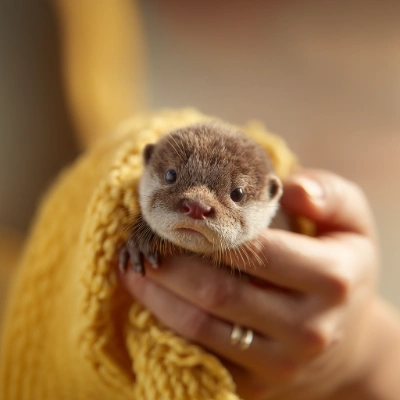 Comfy Cloud で開く
JSONをダウンロードするか、テンプレートライブラリで「Bria: Image Outpainting」を検索
**入力素材**
このファイルを対応する `LoadImage` ノードにアップロードします:
`LoadImage` ノード 11 · `baby_otter.png`
## 出力例
FIBO Edit は、さまざまな編集タスクに優れています:
* **時間帯の変更**: シーンの照明を変更したり、時間帯を変更する
* **素材とテクスチャの交換**: 異なる色、素材、生地、衣服を試す
* **オブジェクトの素材置き換え**: 特定のオブジェクトの素材を入れ替える
* **マスク領域の編集**: 特定の領域をマスクして精密に編集する
* **テキストの調整**: 画像内のテキストを調整する
* **アートスタイルの変換**: 画像を別のアートスタイルで再解釈する
Comfy Cloud で開く
JSONをダウンロードするか、テンプレートライブラリで「Bria: Image Outpainting」を検索
**入力素材**
このファイルを対応する `LoadImage` ノードにアップロードします:
`LoadImage` ノード 11 · `baby_otter.png`
## 出力例
FIBO Edit は、さまざまな編集タスクに優れています:
* **時間帯の変更**: シーンの照明を変更したり、時間帯を変更する
* **素材とテクスチャの交換**: 異なる色、素材、生地、衣服を試す
* **オブジェクトの素材置き換え**: 特定のオブジェクトの素材を入れ替える
* **マスク領域の編集**: 特定の領域をマスクして精密に編集する
* **テキストの調整**: 画像内のテキストを調整する
* **アートスタイルの変換**: 画像を別のアートスタイルで再解釈する